Review the issued resource ledger
This page is for administrators and operators who manage issued resources. Check who received each resource and track its expiry and revocation.
Filter the list
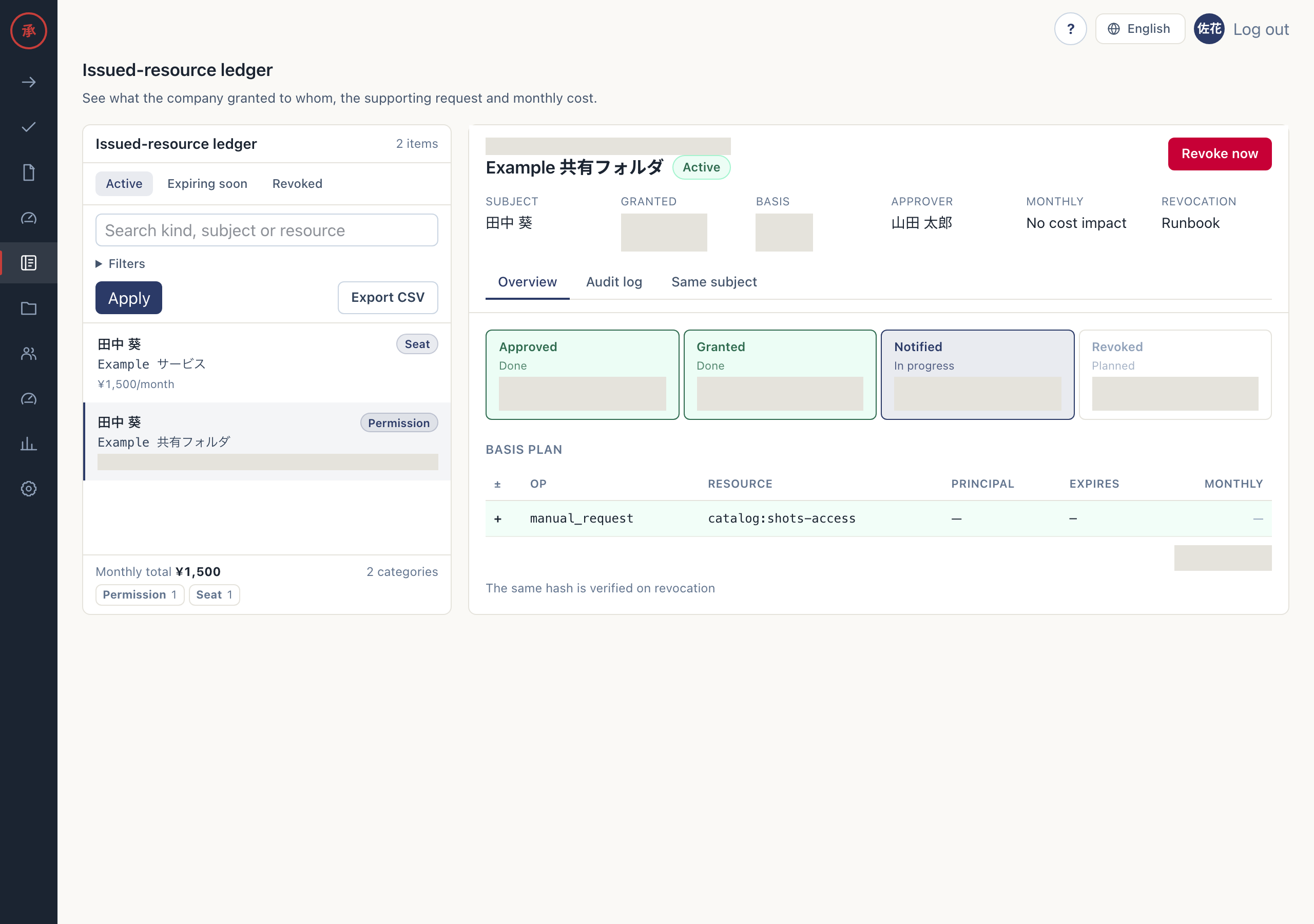
Section titled “Filter the list”- Open “Issued-resource ledger” at
/ws/ledger. “Active” lists resources that have not been revoked. - Select “Expiring soon” or “Revoked”. Expiring soon shows unrevoked resources due within seven days, including overdue resources; Revoked shows resources with a revocation timestamp.
- Use search and “Filters” to select the kind, subject, grant date range and sort order, then select “Apply”. The list shows matching rows.
- Select “Export CSV”. You receive the results for the selected segment and filters.
Read the basis of a record
Section titled “Read the basis of a record”- Select a row. The right pane shows Subject, Granted, Basis, Approver, Monthly and Revocation.
- Check the request link under “Basis” and the “Basis plan”. You can compare the approved content with the issued resource.
- Read “Overview” for the approval, grant, notice and revocation timeline. Planned dates and recorded timestamps are shown separately.
- Open “Audit log” and “Same subject”. You can review request and resource events and other resources issued to the same person.
The revocation method comes from the basis plan. It does not guarantee that the current connection is usable.
Revoke now
Section titled “Revoke now”Only owners and admins can use this action. It marks the ledger record as revoked and notifies the subject. It does not call a cloud permission revocation API. If you need to remove access or cancel a contract, carry out that work in the external service too.
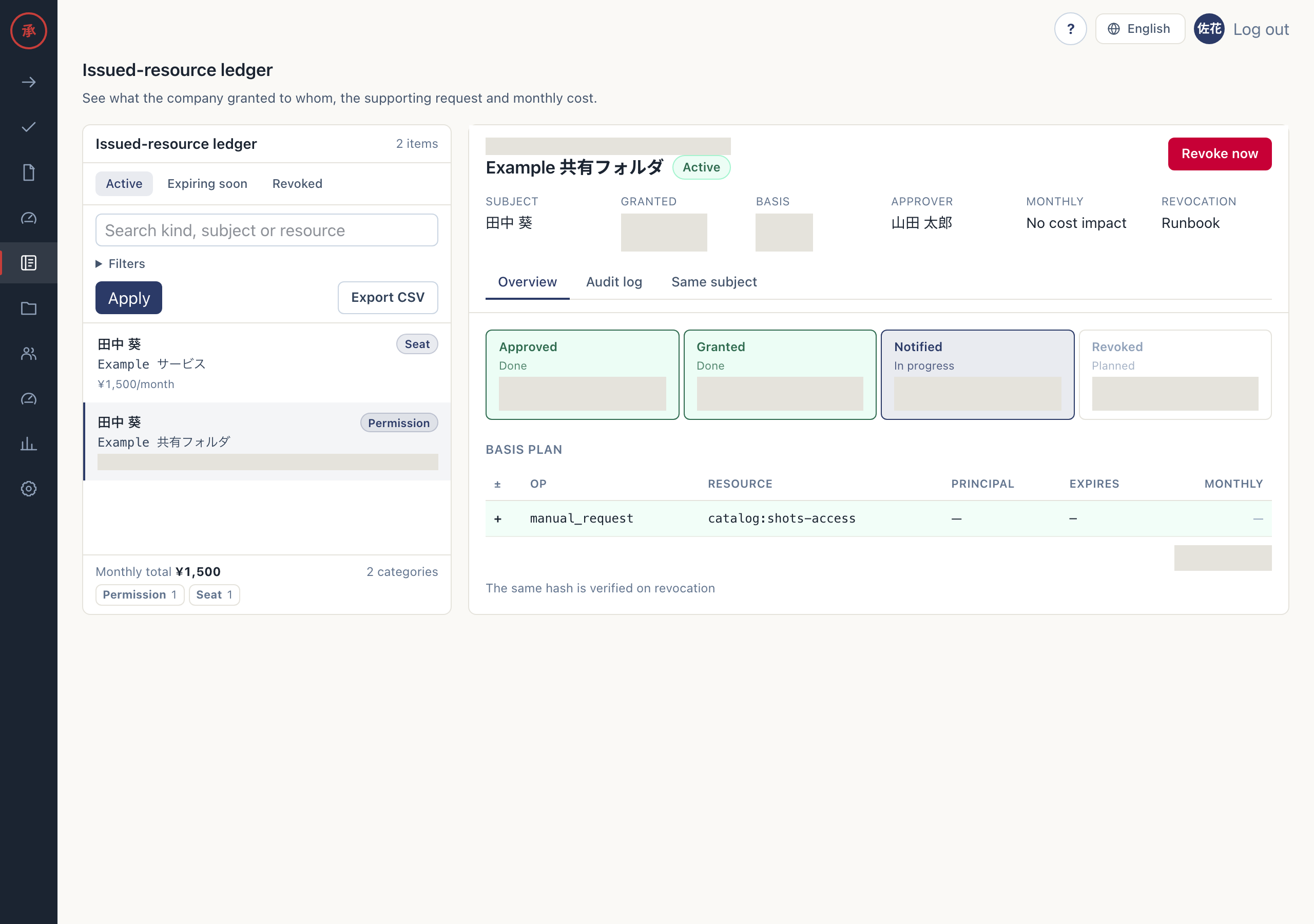
- Open “Revoke now” in the selected record. A reason field and confirmation button appear.
- Enter 1–500 characters in “Reason for revocation (required)”. The reason is ready to be included in the audit record.
- Check the content and select “Revoke and notify subject”. The ledger record becomes revoked, and the audit records
grant.revokedwith the reason. - Check the result message. Revocation remains recorded if notification fails, so you can contact the subject when needed.
Check expiry notices and expiry revocation
Section titled “Check expiry notices and expiry revocation”Expiry processing runs when someone views pages such as the ledger or when a Slack event occurs. It does not guarantee execution at the exact expiry time.
- Review resources due within three days. The subject and issuer (the requester of the basis request) receive a notice. If they are the same person, there is one recipient. Connected Slack users receive DMs; email is used when Slack is unavailable.
- Check the ledger after expiry. When the approved hash matches and a supported revocation connection is available, automatic revocation records
grant.expired_revoked. - Review any revocation runbook delivered because the connection is missing, unsupported or execution failed. The assignee removes the resource in the external service, then selects “Report revocation” on the Slack task and submits evidence. The ledger then shows the resource as revoked.
Notice selection uses notified_at; expiry revocation uses a revoke_started_at claim and work ownership to prevent duplicate processing. Opening several tabs does not create a separate revocation task for each tab. Undelivered notifications are retried. Completion can be reported only from Slack; the web app has no screen for it. If the runbook arrived by email or your organization does not use Slack, remove the resource in the external service and then contact an administrator. Owners and admins can mark the record as revoked with “Revoke now”. Also ask an administrator if the assignee cannot resolve the task.
See Execution and audit logs for reviewing the audit trail.