Connect Slack
This page is for organization Owners and Admins connecting Slack to Actagate. Check what works without Slack, then install the Bot and synchronize members if you need the integration.
Use the product without Slack
Section titled “Use the product without Slack”Requests, approvals, execution, and the ledger work over the Web and email. Notifications arrive by email with links to the relevant actions, but no approval buttons.
Without Slack, you cannot use L0 stamps through :actagate: reactions in chat, L1 declarations through /actagate declare, Slack DM notifications, or “Sign in with Slack”.
Approval reminders, escalations, and grant expiry still work without Slack because the Web app handles them. Nothing runs in the background. The Web app processes them when someone opens “Approvals”, “Requests”, “Ledger”, or “Observability”. Opening “Home” processes reminders and escalations only. In an organization without Slack, reminders arrive by email.
- Open “Settings” (
/ws/settings) as Owner or Admin. An unconnected organization has a “Slack integration” card marked “Not connected”. - Check “What connecting enables”. It lists “Slack DMs for approval cards, reminders, and completion notices”, “Stamp records from chat (L0)”, and “Declarations (L1)”, with a “How to install the Bot” link. There is no “Sync now” button.
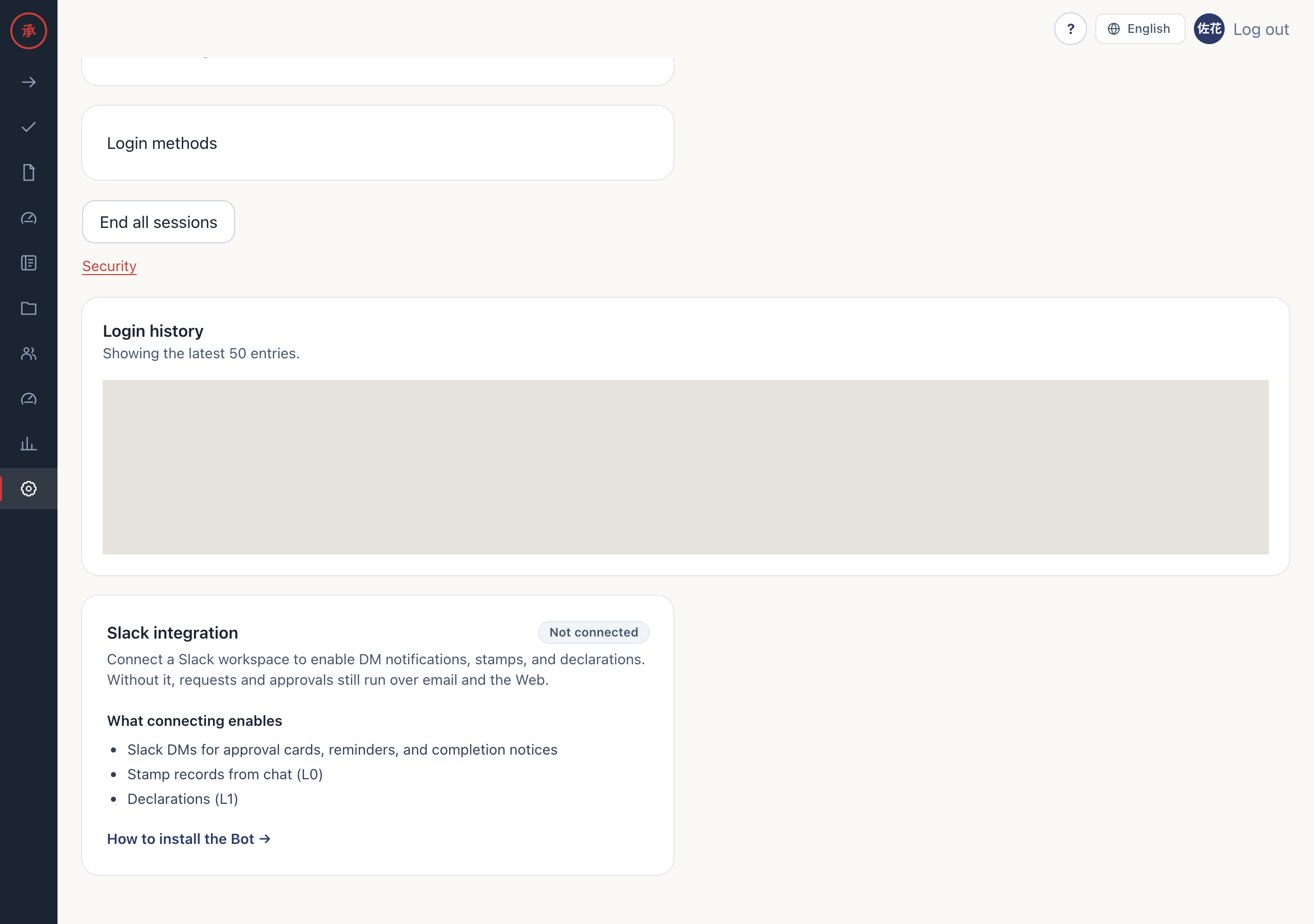
An organization created by the standard Compose db/migrate.sh has a slack_team_id, so its card is marked “Connected” even if the Bot is not running. This status alone does not confirm that the Bot is running.
Install the Bot
Section titled “Install the Bot”This section is reference information taken from the manifest and the deployment configuration. Installation into a Slack workspace has not yet been walked through on a real workspace.
This requires someone who can create and install Slack apps and someone who can change deployment environment variables. The manifest is apps/slack-bot/slack-manifest.json.
| Item | Manifest and deployment settings |
|---|---|
| Slash command | /actagate. Its name must match SLACK_COMMAND_NAME |
| Connection | Socket Mode and interactivity are enabled |
| Events | reaction_added and app_home_opened |
| Tokens | The Bot token (xoxb-), the App-level token (xapp-), and the signing secret |
| Applying the settings | Restart the Bot and Web app after setting the environment variables. Startup synchronization binds the workspace to the organization and imports user groups and their members |
The manifest specifies these scopes:
| Type | Scopes |
|---|---|
| Bot | commands, chat:write, reactions:read, channels:history, groups:history, im:history, users:read, users:read.email, usergroups:read, team:read, files:read |
| User | openid, profile, email |
| Component | Environment variables and purpose |
|---|---|
| Bot | Requires SLACK_BOT_TOKEN, SLACK_APP_TOKEN, SLACK_SIGNING_SECRET, and DATABASE_URL |
| Web | Uses SLACK_BOT_TOKEN for manual synchronization and email matching during invitations |
| Database initialization | db/migrate.sh requires SLACK_TEAM_ID and SLACK_WORKSPACE_NAME |
| Slack login on the Web | Set SLACK_CLIENT_ID, SLACK_CLIENT_SECRET, and SLACK_OIDC_REDIRECT_URI. Match the redirect URL to the Slack app configuration and use HTTPS outside localhost |
users:read.email allows reading profile.email from users.info. Synchronization uses it to match existing members. Invitations use it to match invited addresses to Slack-originated rows that have no email. A match adds the email to the existing row without creating another row.
What “Sync now” imports
Section titled “What “Sync now” imports”Only Owner and Admin can run “Sync now”. The connected card includes “Workspace”, “Connected on”, “Last synced”, and this button.
[Screen: Slack integration (connected)]
Only people in Slack user groups are processed. The product does not call users.list; it fetches group members through users.info. People outside all user groups are not imported by this button.
| Match | Synchronization behavior |
|---|---|
| A row has the same Slack ID | Update that row |
| No Slack ID matches, but a row has the same email and an empty Slack ID | Match email case-insensitively and add the Slack ID to the existing row. The row count does not increase |
| Neither match exists | Create a new member row |
Each synchronization updates display name, email, the Slack admin and owner flags, locale, and department from Slack. Display name and department keep their existing values when Slack has no value. Department comes from the Slack profile title.
Locale is overwritten every time. If the Slack locale is neither Japanese nor English, or Slack has no value, it becomes English. As a result, a language that a Slack-linked member chooses on “Home” reverts to the Slack locale at the next synchronization.
Slack user groups are imported as approval groups. Groups created on the Web are not overwritten. Organization synchronization also runs when the Bot starts. The following actions synchronize only the people involved.
| Action | People synchronized |
|---|---|
| Slash command | The person who ran it. /actagate setup @manager also synchronizes the named manager |
| :actagate: reaction | The person who reacted and the author of the message. Other emoji do not trigger synchronization |
| Opening App Home | The person who opened it |
The success message is only “Synchronized with Slack.”, without counts. Failure uses “Slack synchronization failed. Check SLACK_BOT_TOKEN and the Bot’s scopes.” A user-group fetch failure can still produce a success message because processing continues.
Connect Slack later
Section titled “Connect Slack later”You can connect an organization that started with email and the Web. People registered by email should use the same address in Slack. This section is also reference information from the configuration and code, and has not been walked through on a real workspace.
Connecting requires the Bot’s required environment variables from the previous section and SLACK_BOT_TOKEN on the Web app. When the Bot starts, organization synchronization (syncOrganization) binds the workspace according to these rules.
| Organization state | Result of startup synchronization |
|---|---|
The database has exactly one organization, and its slack_team_id is empty |
The workspace is bound to that organization |
Any other state (several organizations, or a slack_team_id is already set) |
The organization is looked up by the workspace team ID and created if none exists |
Binding replaces the organization name entered on /setup with the Slack workspace name. “Sync now” also updates the organization name to the workspace name.
“Sync now” covers only people in user groups. Existing members with matching emails and empty Slack IDs are linked; people without a matching row become new members.
Manual synchronization fails if the organization is bound to another Slack workspace. After connecting, notifications switch to Slack DMs for people with Slack IDs; others keep receiving email. “Sign in with Slack” requires a registered Slack ID and does not create a new member during login.