Create the organization and Owner
This page is for the person deploying Actagate, who creates the organization and its first Owner. Run initial setup on a database with no organization, then sign in as the Owner by email.
When initial setup is available
Section titled “When initial setup is available”Use a database with the schema and all migrations applied, but no organization created yet. /setup is available only when the Web environment variable SETUP_TOKEN has a non-empty value and the organizations table has zero rows. SETUP_TOKEN is the secret you enter in the form to authorize organization creation.
The standard Docker Compose procedure creates an organization as seed data through db/migrate.sh, so /setup returns 404 there. Leaving Slack environment variables empty does not turn the standard Compose procedure into a deployment without Slack.
Create the organization and Owner
Section titled “Create the organization and Owner”[Screen: Initial setup]
- Set a sufficiently long random secret as
SETUP_TOKENfor the Web app, start it, and open/setup. With zero organizations, “Initial setup” opens. - Enter the configured value in “Setup token”, a name of up to 200 characters in “Organization name”, and your email in “Owner email address”. The form now has the values needed to create the organization and Owner.
- Select “Create organization”. The organization and Owner are created, and the browser moves to
/login?sent=1with “If the email address is registered, a login link has been sent.”
You are not signed in yet. An incorrect token, invalid input, or an existing organization returns 404 without displaying a reason. Check the input and open /setup again.
Once any organization exists, /setup is no longer served, so a second visit returns 404 and the token cannot create another organization or Owner.
Sign in through the email link
Section titled “Sign in through the email link”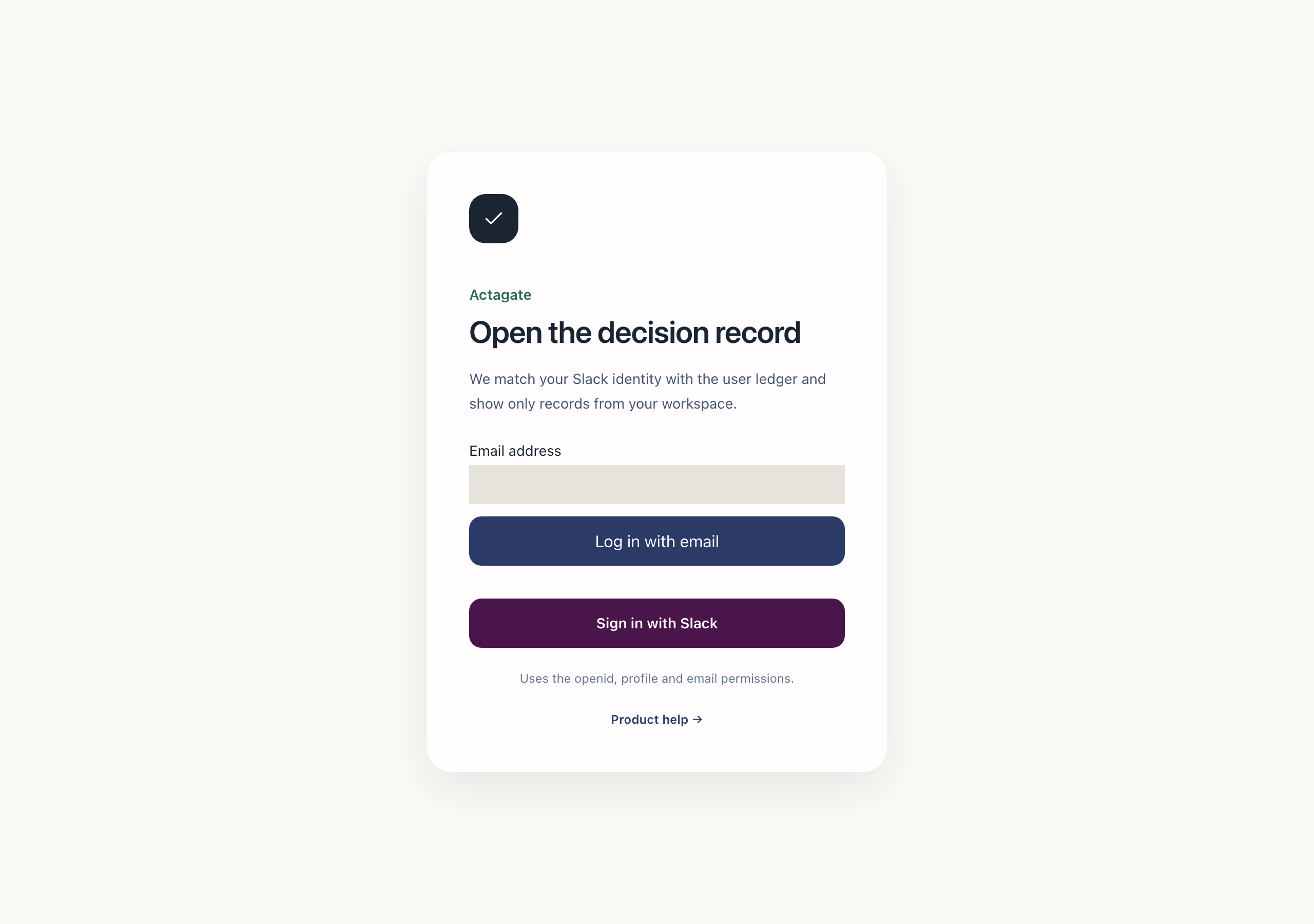
- Open the email sent to the Owner’s address. It contains a login link that is valid for 15 minutes and can be used once.
- Open the link. You are signed in and taken to “Home” (
/home).
In a trial environment using MAIL_TRANSPORT=log, the entire email, including the link, is written to stdout as one JSON line instead of being sent. The deployment operator can find the link in the Web logs.
An expired or used link displays “This link is invalid or expired. Request a new link.” Enter your registered address in “Email address” at /login and select “Log in with email” to request another link.
The Owner’s first settings
Section titled “The Owner’s first settings”- On “Home”, choose “日本語” or “English” in “Language”. The choice is saved and the screen language changes.
- Invite people from “Invite members” on “Members”. New members receive an email for signing in. See Invite members for the input format.
- Use “Edit manager” on “Members” to assign each member’s manager. Approval routes that use a manager can then resolve the approver. See Member and manager settings for details.
For members linked to Slack, every Slack synchronization overwrites the language with the Slack locale, so a language chosen on “Home” does not persist. See Connect Slack for details.