Carry out an operation
This page is for members of the execution group carrying out an approved request. Review the runbook and assessment, execute the approved content and retain the results.
Select an approved runbook
Section titled “Select an approved runbook”- Open “Cloud operations” at
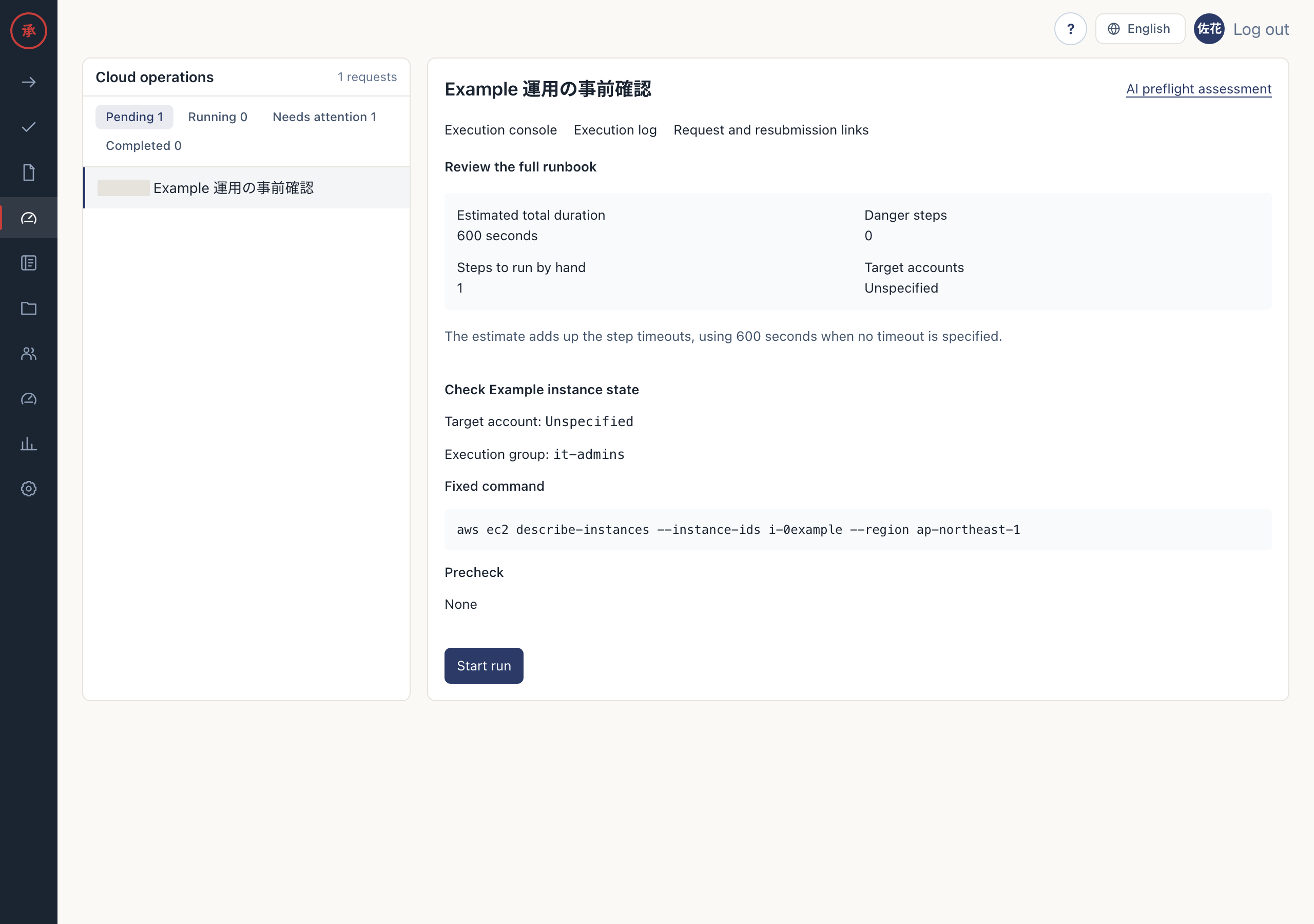
/ws/operations. You can review requests with runbooks after approval. - Select “Pending”, “Running”, “Needs attention” or “Completed”, then open a request in the list. The right pane shows the runbook overview or execution console.
- Check “Fixed command”, “Precheck”, “Expected result” and the execution group. You can identify the target and required checks.
Viewers cannot execute steps or record results. Members of the assigned group perform those actions. Opening the page does not execute cloud operations.
Review the assessment
Section titled “Review the assessment”- Open “AI preflight assessment”. You can review the verdict, concerns, past execution records and unknowns.
- Select “Re-evaluate” when needed. An assessment based on read-only checks and historical records is saved.
- Read the evidence and unknowns, then decide how to proceed as the operator. The assessment is advice; it does not change the approved plan or execution permissions.
Rules provide the assessment when AI is unconfigured or unavailable. Missing read connections leave information marked as unknown. Assessment does not perform changes.
Execute steps
Section titled “Execute steps”- If “Review the full runbook” appears before execution starts, read every step and select “Start run”. The first executable step is prepared.
- In “Execution console”, check the step status and command, then select “Run step” for a ready step. The approved operation proceeds when its precheck passes.
- If “Review dangerous operation” appears, read the impact and rollback, enter the specified target resource name and execute. The step runs only when the name matches.
- If “Check status” appears, use it to check completion. After a step succeeds, the next step becomes ready.
Runbook steps use one of three modes: auto, assisted or copy. Auto and assisted steps behave the same way: they run through the API when the operator selects “Run step”. Approval alone never starts a step. Copy steps are performed externally and their results recorded. APIs used for prechecks and postchecks are read-only.
Handle copy mode and failures
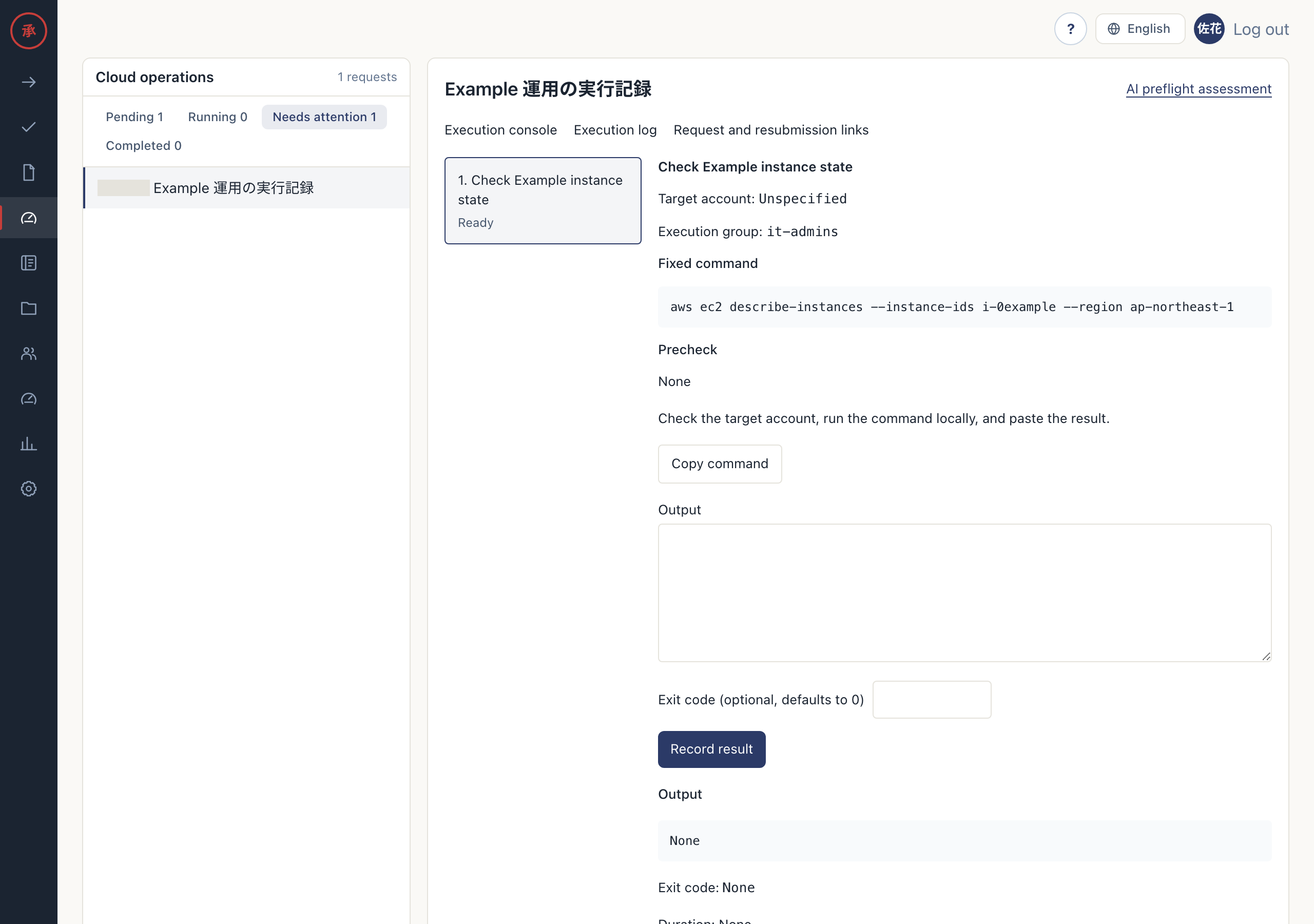
Section titled “Handle copy mode and failures”- If missing connections or credentials require copy mode, select “Copy command”. You can copy the approved command to your local environment.
- Check the execution target, carry out the work externally, enter “Output” and any “Exit code (optional, defaults to 0)”, then select “Record result”. Evidence is saved; an exit code of 0 allows the next step to proceed.
- On failure, read the output and choose “Try again”, have the requester “Fix and resubmit”, or select “Stop here”. The retry, new request or cancellation is recorded.
- Open “Execution log”. You can review the actor, timestamp, exit code and output excerpt.
Network failures and similar API availability problems return execution to copy mode. Permission errors, failed prechecks and timeouts stop the step as failed; not every failure becomes copy mode. If interrupted execution has an unknown result, check the current state before recording evidence.
The approved plan cannot be edited in place. Catalog runbook corrections apply to future requests. See Execution and audit logs for tracing records.