Review the dashboard and audit records
This page is for administrators and auditors reviewing their organization. Check approval waiting times and issued resources, then retrieve audit records for investigation.
Read metrics and breakdowns
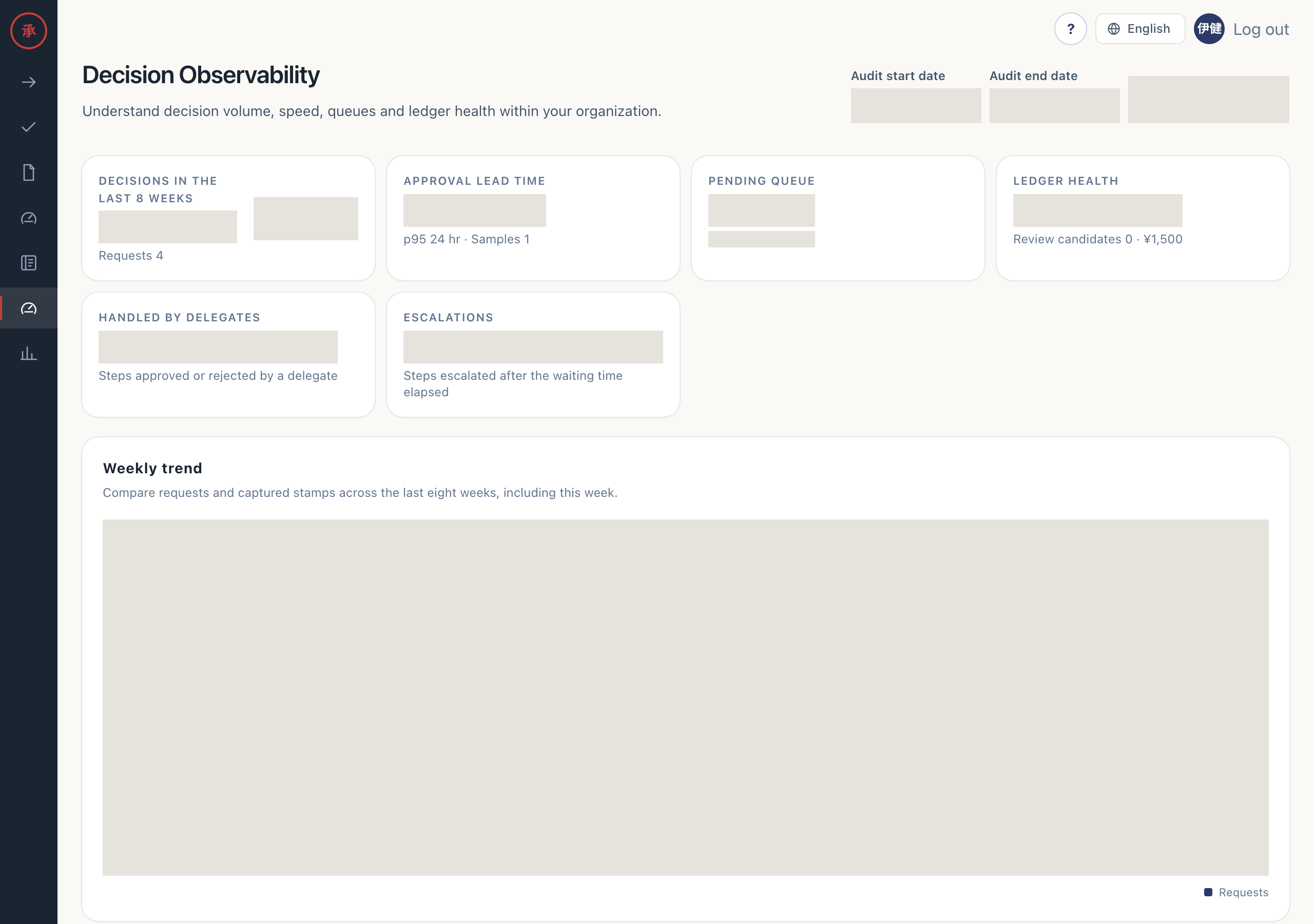
Section titled “Read metrics and breakdowns”- Open “Decision Observability” at
/ws/dashboard. You can review “Decisions in the last 8 weeks”, “Approval lead time”, “Pending queue” and “Ledger health”. - Read “Weekly trend”. It compares request counts across eight weeks, including this week. Captured stamps also appear when Slack is connected.
- Check p50, p95 and Samples under “Approval lead time”, together with “By catalog” and “By final approver”. They show elapsed time from
request.createdto the finalstep.approved, with breakdowns. - Review “Execution breakdown” and “Ledger health”. You can see the completed-work ratio for “Automated (Google Workspace)” and “Runbook (manual)”, active resources, monthly totals by currency and review candidates active for more than 90 days.
Execution breakdown is the ratio of methods used for successful executions. Neither this screen nor reports show an execution success rate that includes failures in the denominator. Use Execution and audit logs to investigate failures.
Open /ws/reports for period-based summaries, including category and department breakdowns. The dashboard’s eight-week trend is separate from the period selected in reports.
Address pending queues
Section titled “Address pending queues”- In “Pending queue”, check each approver’s pending count, oldest wait and reminder count. “Over 24 hours” is the review threshold (SLO).
- Check with the assignee and open the request from the approval queue. You can review the content and approval step that need a decision.
The oldest wait here starts at request creation. The approval queue measures waiting time for each step from a different starting point. The SLO indicator does not approve or reject a request.
Export audit CSV
Section titled “Export audit CSV”- Set “Audit start date” and “Audit end date” at the top of the screen. The range can include up to 366 days, counting both endpoints.
- Select “Export audit CSV”. The file includes the ID, event, entity, actor, Slack user ID, payload, recorded time,
prev_sha256(the previous row’s hash) andsha256(this row’s hash). Following each row’s previous hash lets you check that the records form an unbroken chain. - If the range exceeds 100,000 events and cannot be exported, shorten it and try again. You can retrieve records in separate ranges.
Cells beginning with =, +, -, @, a tab or a carriage return receive a leading apostrophe to prevent spreadsheet formula interpretation. See Audit events for event meanings.
Auditor access
Section titled “Auditor access”Owners, admins and auditors can review their organization’s dashboard, reports and audit CSV. Auditors can also read the ledger, but cannot use “Revoke now”, manage members or catalogs, or change settings. Records from other organizations are not displayed.